

Google Business Profile posts are short, search-facing updates that appear directly in Google Search and Maps when someone looks up your business. They let you share announcements, offers, events, and product details with people who are already looking for what you sell. The single most important action you can take right now: publish an Update post with a clear CTA button (Book, Order, or Call) and a properly sized image. That combination drives the most direct conversions from Search and Maps views.
Here's what you need to know before you publish your first post:
- Four post types are available: Update, Offer, Event, and Product. Each serves a different marketing goal.
- Posts appear in the Updates and Overview tabs on mobile, and in the "From the owner" section on desktop, per Google's official post guidance.
- Compliance matters from the start: no phone numbers in post text, no misleading offers, no links to suspicious domains. The posts content policy is the governing document.
- Your profile must be verified before posts go live. Unverified profiles hold posts in a pending state indefinitely.
Table of Contents
- What are Google Business Profile posts and why do they matter?
- Where do posts show up in Search and Maps?
- Which post type should you use for each goal?
- How to create a Google Business Profile post step by step
- How to edit, delete, and understand post status
- Rules, common policy pitfalls, and a compliance checklist
- Optimization checklist and ready-to-use post templates
- How to measure post performance and demonstrate ROI
- What we actually see going wrong (and how to fix it)
- Let Executive Edge Partner Group handle your GBP posts for you
- Sources
- FAQ
What are Google Business Profile posts and why do they matter?
Most business owners think of their Google Business Profile as a static listing: name, address, hours, photos. Posts change that. They turn your profile into an active content channel that surfaces in Search and Maps without any ad spend.
A post can include text, photos, videos, and an action button. The content is short by design — Google recommends keeping descriptions concise — and it expires or remains visible depending on the post type. Update posts stay visible for several months unless you remove them. Offer and Event posts expire automatically when their end date passes.
The difference between GBP posts and social media updates is placement. A Facebook post reaches your followers. A GBP post reaches people who are actively searching for your business or your category on Google. That's a fundamentally different audience: higher intent, closer to a decision.
For local businesses, that placement translates directly into bookings, calls, and foot traffic. A restaurant posting a weekly special reaches people searching "restaurants near me" at 6 PM on a Friday. A contractor posting a seasonal promotion reaches homeowners searching for that exact service. The local SEO content strategy that pairs well with GBP posts treats each post as a micro-conversion opportunity, not just a content checkbox.
Where do posts show up in Search and Maps?
Post placement depends on the device and the search context.
On mobile, posts appear in the Updates tab and the Overview tab of your Business Profile panel. Google sometimes surfaces a featured post prominently in the panel before a user even taps through to your full profile. That featured slot is valuable real estate for a time-sensitive offer or event.
On desktop, posts appear in the "From the owner" section within the Knowledge Panel on the right side of search results. Users who click your profile see the full post feed.
In Google Maps, posts surface in the Updates tab when a user taps your listing. Maps users are often in active navigation or local discovery mode, which makes them highly receptive to an offer or event post.
The practical implication: someone searching for your business by name will see your most recent post before they see your website. That's your first impression for a returning customer or a warm prospect. A stale post from eight months ago sends a different signal than a fresh one from last week.
Which post type should you use for each goal?
Picking the wrong post type is one of the most common mistakes local businesses make. Each type has specific required fields and triggers different display behavior.
Update posts
The default type. Use it for general announcements, new blog content, staff news, or anything that doesn't fit a specific promotion or event. No required fields beyond the description. You can add a photo, video, and any of the available CTA buttons: Book, Order online, Buy, Learn more, Sign up, Call now, or Get offer.
Offer posts
Use these for discounts, flash sales, or limited-time promotions. Offers require a title and start/end dates, and they automatically display a "View Offer" button. You can add a coupon code, redemption link, and terms. Per Google's post management documentation, Offer posts get a distinct visual treatment that draws attention in the panel.
One hard restriction: hotel businesses cannot create Offer posts that advertise discounts or deals. Google prohibits this to avoid confusion with dynamic booking pricing.
Event posts
Use these for classes, open houses, webinars, workshops, or any time-bound gathering. Events require a title, start date, and end date. If you don't specify a time, Google defaults to a 24-hour duration. Pair your Event post with Schema structured data on your website — the post handles the Search panel display, while the schema markup helps search engines understand the event in a machine-readable format.
Product posts
Use these to highlight specific items from your inventory or service menu. Products display in a dedicated Products section on your profile. A new menu item, a featured service package, or a seasonal product all work well here.
How to create a Google Business Profile post step by step
On the web (business.google.com)
- Go to Business and sign in.
- Select the profile you want to post to.
- Click "Add update" (or the post icon) in the dashboard.
- Choose your post type: Update, Offer, or Event.
- Add your description (keep it under 300 words; the first 100 characters show in the panel preview).
- Upload a photo or video. See image specs in the optimization section below.
- Select a CTA button and add the destination URL.
- For Offer posts: add the title, start/end dates, coupon code, and terms.
- For Event posts: add the event title and start/end dates and times.
- Click "Post" to publish immediately, or use the schedule option to set a future date and time.
On the mobile app (Google Maps or Google Business Profile app)
- Open the Google Business Profile app or tap your profile in Google Maps.
- Tap "Add update" or the pencil/edit icon.
- Follow the same steps as the web flow — the fields are identical.
- Tap "Post" when ready.
Scheduling and recurring posts
The web UI lets you schedule a post for a specific date and time. For recurring promotions, the UI includes a "Repeats" option. Pair every scheduled post with UTM parameters on the CTA URL so you can track which post drove which conversion in Google Analytics.
Posting across multiple locations
For businesses with two or more profiles, the Google Business Profile dashboard lets you select multiple locations before creating a post. For larger programs, the Business Profile API supports bulk posting, but community-reported API location limits mean you should test at small scale before rolling out to dozens of locations. For multi-location brands, centralized templates and a multi-location content workflow reduce errors and keep messaging consistent.
How to edit, delete, and understand post status
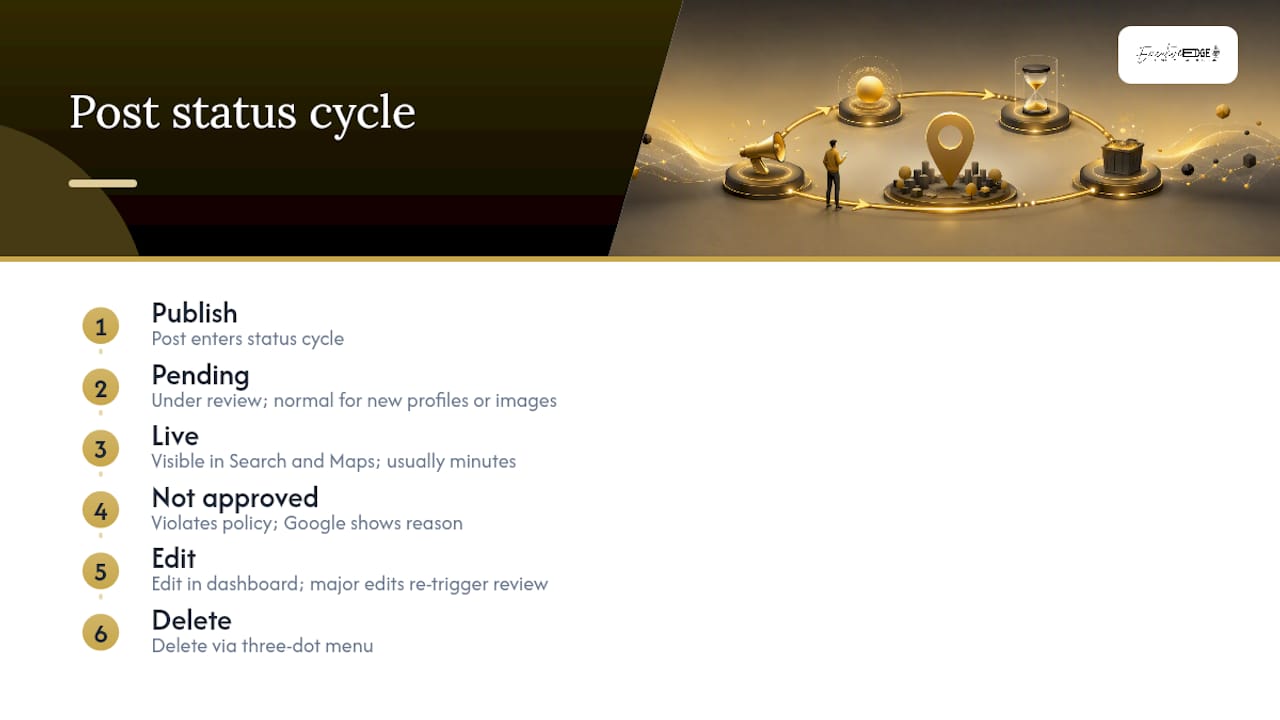
Every post moves through a status cycle after you publish it.
Live means the post passed Google's content review and is visible in Search and Maps. Most compliant posts reach Live status within minutes, though processing can take up to 24 hours.
Pending means the post is under review. This is normal for new profiles or posts with images that require manual review. If a post stays Pending for more than 24 hours, check that your profile is fully verified.
Not approved means the post violated a content policy. Google typically shows a reason. The most common causes: phone numbers in the post body, inappropriate images, misleading offer terms, or links to flagged domains.
To edit a published post, go to your profile dashboard, find the post, and click the edit icon. Significant edits (changing the CTA URL, replacing the image) may trigger a new review cycle. To delete a post, click the three-dot menu on the post and select "Delete."
Pro Tip: If a post is stuck in Pending and your profile is verified, try removing and re-uploading the image. Low-resolution or heavily filtered photos are a frequent trigger for manual review queues.
Rules, common policy pitfalls, and a compliance checklist
Google's posts content policy is short but specific. Violating it gets posts rejected and, in repeated cases, can contribute to profile suspension under the business representation guidelines.
The most common rejection reasons:
- Phone numbers in post text. Use the "Call now" CTA button instead. It uses your verified profile number and preserves click-to-call tracking.
- Misleading offer terms. If you advertise "50% off," the terms must match what customers actually receive.
- Low-quality or inappropriate images. Blurry, watermarked, or adult-content images are rejected.
- Links to suspicious domains. Google flags CTA URLs that redirect through phishing or malware domains. Use Redirect Path to verify that your CTA URL resolves cleanly before publishing.
- Hotel Offer posts. Hotels cannot post discount offers.
- Regulated goods. Posts promoting firearms, alcohol, or other regulated categories face additional restrictions.
Compliance checklist before you publish:
- No phone numbers in the description text
- CTA URL resolves to a live, non-flagged page
- Image meets minimum resolution (see specs below)
- Offer title and terms are accurate and not misleading
- No all-caps text or excessive punctuation
- Content is family-friendly
- Post type matches the actual content (don't use Offer for a general announcement)
Check the full Business Profile policies hub before running promotions in regulated industries.
Optimization checklist and ready-to-use post templates
Image and video specifications
Use Canva to build post images at these exact dimensions. For teams publishing at volume, Cloud Vision can automate image quality checks before upload, flagging blurriness or low resolution before a post goes into review.
Optimization checklist
- Headline / first sentence: lead with the offer or news, not your business name
- Copy length: 150–300 words for Updates; shorter for Offers (the title carries the weight)
- CTA button: always include one; "Book" and "Order online" drive the most direct conversions
- UTM parameters: append
?utm_source=google&utm_medium=gbp&utm_campaign=post-nameto every CTA URL - Image: upload a fresh image with each post; recycled images get lower engagement
- Frequency: post at least once per week to keep the profile active and the Updates tab current
Ready-to-use templates
Update post (new service or announcement):
[Business name] now offers [service]. [One sentence on the benefit]. Book your appointment this week — [CTA: Book now].
Offer post:
Title: 20% Off [Service] — [Month] Only Description: Save 20% on [service] when you book before [date]. Use code [CODE] at checkout. Terms: one per customer, new bookings only.
Event post (short):
Title: Free [Workshop/Class Name] — [Date] Description: Join us [date] at [time] for a free [topic] workshop. Seats are limited. [CTA: Sign up].
For geo-targeted copy, see these geo-optimized content examples that translate directly into GBP post language for location-specific campaigns.
How to measure post performance and demonstrate ROI
Google Business Profile Insights shows post views and CTA button clicks directly in your dashboard. Those two numbers are your baseline. Views tell you how many people saw the post in Search or Maps. CTA clicks tell you how many acted on it.
The metrics that matter most for local businesses:
- CTA clicks (Book, Call, Order, Learn more) — direct conversion signal
- Direction requests — foot traffic intent
- Phone calls from the profile — often post-influenced even when not tracked to a specific post
- Website clicks with UTM source matching — ties a specific post to a session in Google Analytics
To connect post clicks to Google Analytics conversions, append UTM parameters to every CTA URL. In GA4, filter sessions by utm_medium = gbp to isolate traffic from your posts. Set up a conversion event for the action that matters most (form submission, booking confirmation, purchase) and you can calculate cost-per-conversion for your posting effort versus paid ads.
A simple weekly reporting cadence: check Insights every Monday, note which post drove the most CTA clicks in the prior week, and use that format as the template for the next post. Over four to six weeks, patterns emerge. A post with a photo of a real customer outcome consistently outperforms a stock image. A specific dollar-off offer outperforms a percentage discount. Those signals are worth more than any general best-practice list.
What we actually see going wrong (and how to fix it)
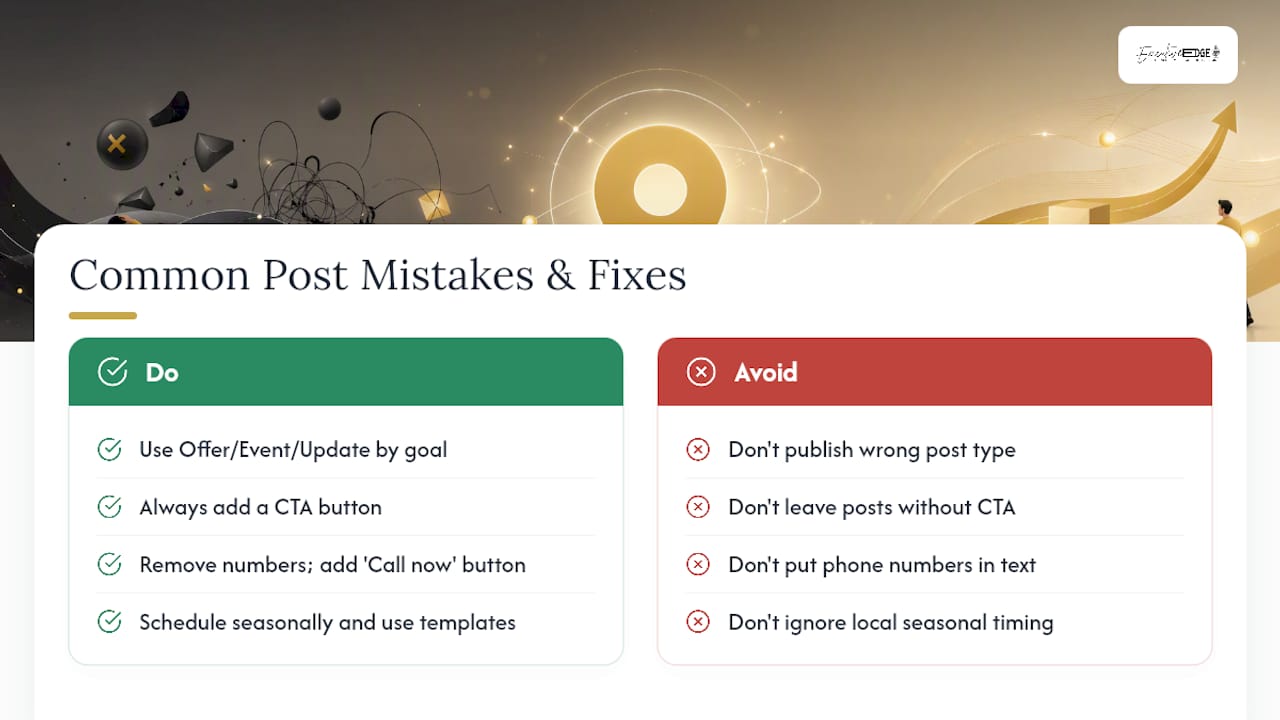
The most common mistake isn't a policy violation. It's using the wrong post type for the goal. A business running a flash sale publishes an Update post instead of an Offer post, misses the "View Offer" visual treatment, and wonders why the post didn't convert. The fix is a 30-second decision: does this post have a start date, an end date, and a discount? Use Offer. Does it announce an event with a specific time? Use Event. Otherwise, use an Update.
The second most common mistake: no CTA button. A post without a button is a dead end. Someone reads your announcement, has no next step, and moves on. Every post should have a button, even if it's just "Learn more" pointing to a relevant page.
Phone numbers in post text are the top rejection trigger. The fix is simple: delete the number from the description and add a "Call now" button. You get better tracking and a compliant post.
For businesses in Tyler and East Texas, seasonal alignment matters more than most owners realize. A post about HVAC maintenance timed to the first cold snap of October, or a landscaping offer tied to spring cleanup season, performs significantly better than the same post published in July. Match your post calendar to local weather patterns and community events, not just national marketing calendars.
Executive Edge Partner Group typically fixes these issues with templated copy libraries, pre-sized image assets, UTM tracking templates, and a recurring scheduling workflow. The result is a consistent posting cadence that doesn't require the business owner to think about it every week.
Let Executive Edge Partner Group handle your GBP posts for you
Consistent, compliant, conversion-focused GBP posting takes about two to three hours per week when done right. Most business owners don't have that time, and most marketers are already stretched across too many channels.

Executive Edge Partner Group manages the full posting workflow: post creation, image design to Google's specifications, CTA setup, UTM tracking, scheduling, and weekly performance reporting. The service is built for busy owners, multi-location brands, and service businesses that need a consistent authority-building presence without adding another task to their plate. It's part of a broader done-for-you content system that covers blog articles, video, podcast, and local brand content across every channel where your customers are searching.
Ready to hand this off? Visit Executive Edge Partner Group to learn how the managed service works and get started.
Sources
FAQ
How do Google Business Profile posts work?
Posts are short updates you publish directly to your Business Profile. They appear in Google Search and Maps when someone views your listing, and they can include text, photos, videos, and a CTA button that links to a booking page, product, or phone call.
What should I post on my Google Business Profile?
Use Update posts for general news and announcements, Offer posts for discounts and promotions with specific dates, Event posts for workshops or open houses, and Product posts for featured items or services. Match the post type to your marketing goal for the best display treatment.
What are the rules for Google Business Profile posts?
Per Google's posts content policy, you cannot include phone numbers in post text, post misleading offers, use inappropriate images, or link to flagged domains. Hotels cannot create Offer posts. Violations result in "Not approved" status and repeated violations can contribute to profile suspension.
How do I see my Google Business Profile posts?
Search for your business name on Google or open your profile at business.google.com. Posts appear in the Updates tab on mobile and in the "From the owner" section on desktop. Post performance metrics (views and CTA clicks) are available in the Insights section of your dashboard.
How often should I post on my Google Business Profile?
At least once per week keeps your Updates tab current and signals to Google that your profile is actively managed. Businesses that post consistently tend to maintain better visibility in local search results than those that post sporadically.